Available Roles
| Role | ERP Access | SureWin Access | Connect Access | Typical User |
|---|---|---|---|---|
| admin | Full access — all modules, settings, reports | Full access | Admin access | Candidate / IT Administrator |
| user | Limited by permissions | Canvasser access | Standard user | Office Staff / Field Volunteer |
| manager | Most modules except system settings | Manager view | Verified user | Campaign Manager |
| volunteer | Voter list view only | Canvassing workflow | Standard user | Field Volunteer |
| citizen | No access | No access | Standard user | General public / Voter |
How Roles Are Assigned
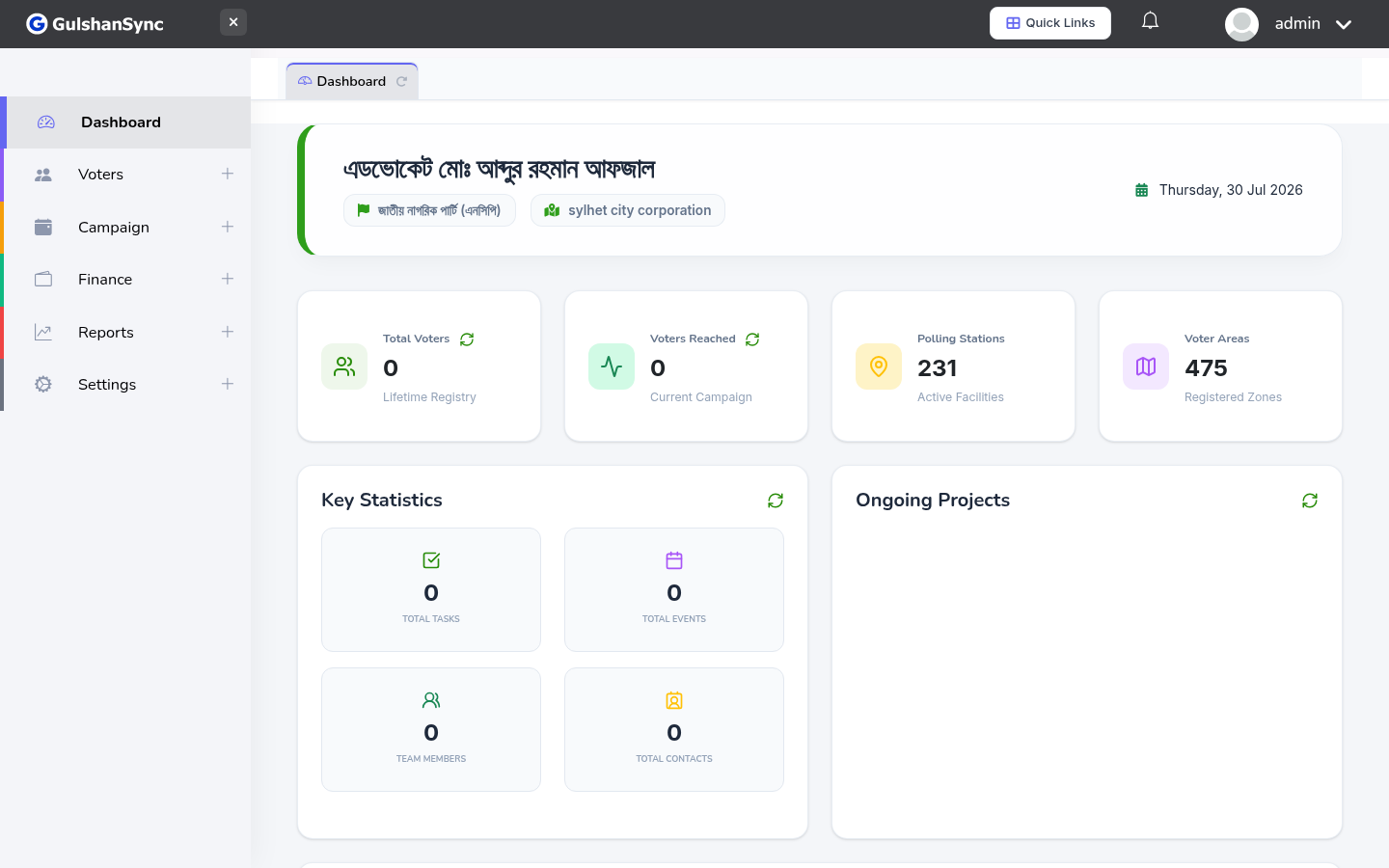
Roles are assigned by the ERP administrator from Settings › Roles or when creating a new staff member. A user's role determines which menus they see in the sidebar and which actions they can perform.
Permission Granularity
Within each role, the administrator can grant or revoke specific permissions — for example, a "Finance Manager" role might have access to Income and Expense but not to Voter Management. Permissions are managed from Settings › Access Control.
Need a role change?
Contact your campaign administrator. Only users with the admin role can change another user's role or permissions.