Opening the Login Page
Open your browser and go to https://secure.gulshansync.com. You will be redirected to the login page if you are not already signed in.
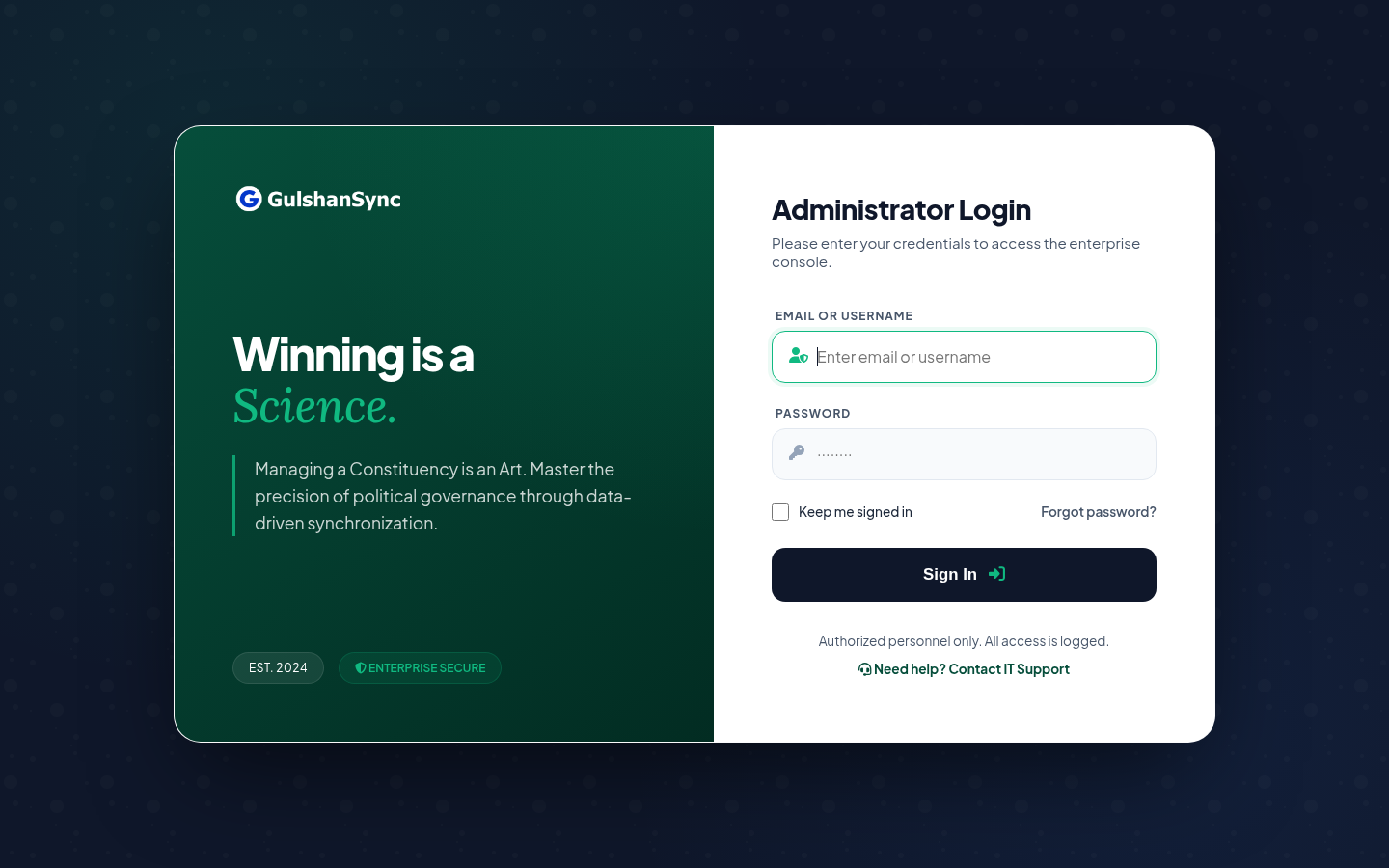
Login Form Fields
| Field | Description | Example |
|---|---|---|
| Email or Username | The email address or username assigned by your administrator | admin@advocateafzal.com |
| Password | Your account password. Case-sensitive. | •••••••••• |
| Keep me signed in | Optional checkbox to stay logged in across browser restarts | Tick on trusted devices only |
Step-by-Step Login
- Open
https://secure.gulshansync.comin your browser. - Enter your email or username in the first field.
- Enter your password in the second field.
- Tick Keep me signed in if you are on a trusted device.
- Click the Sign In button.
- You will be redirected to
/dashboard.
If Login Fails
If you see an error message after clicking Sign In, the most common causes are:
- Wrong password — passwords are case-sensitive. Check Caps Lock.
- Wrong email — confirm the email with your administrator.
- Account disabled — your administrator may have deactivated your account. Contact them.
- Too many failed attempts — wait 5 minutes and try again.
Forgot password?
Contact your campaign administrator. Only administrators can reset passwords. There is no self-service password reset in the ERP.