Opening Projects
From the left sidebar, click Campaign › Projects or navigate to /projects.
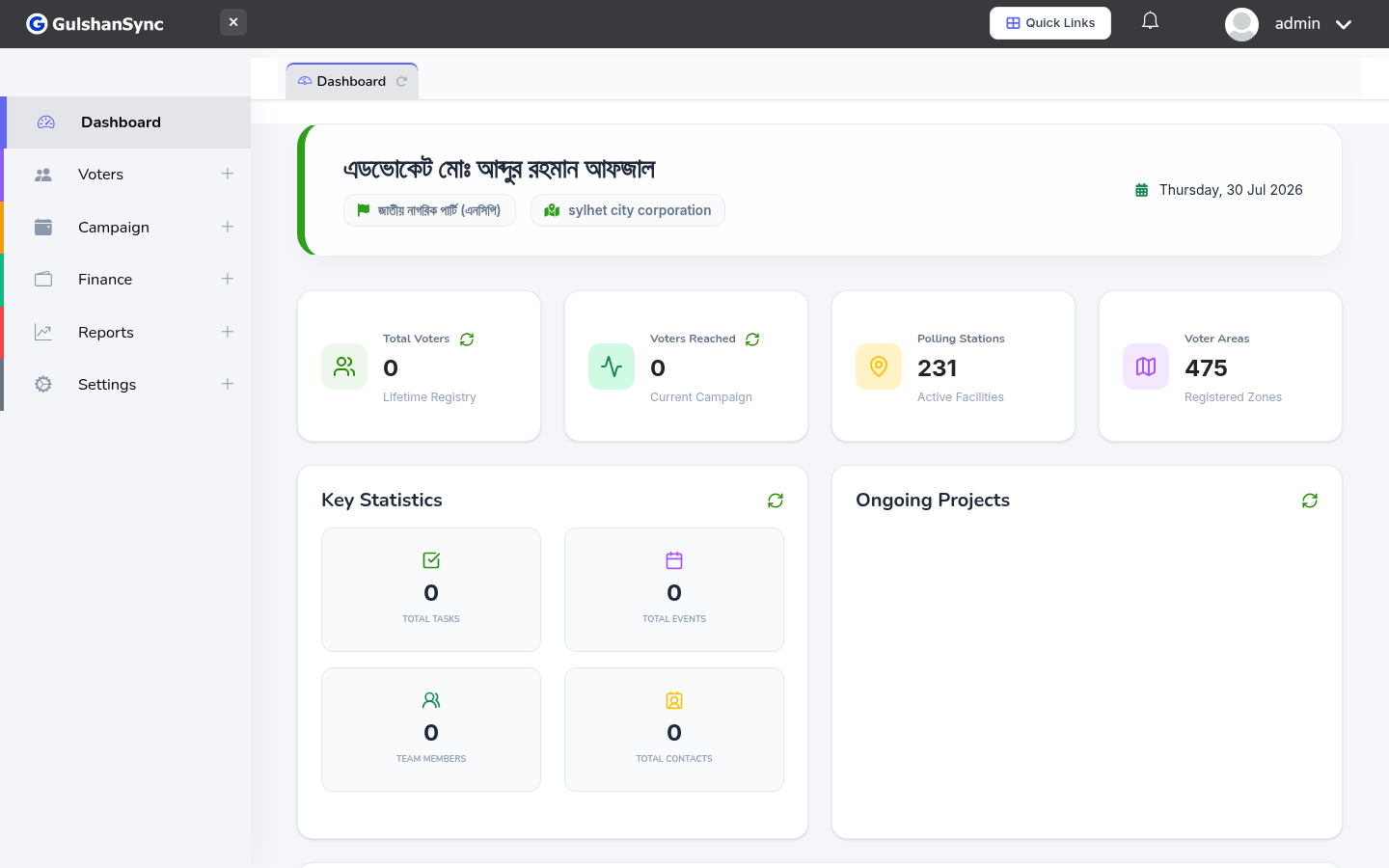
Project Fields
| Field | Description |
|---|---|
| Project Name | Display name (e.g. 'Ward 5 Voter Outreach') |
| Description | Detailed scope and objectives |
| Start Date | When the project begins |
| End Date | When the project is scheduled to complete |
| Status | Planning / In Progress / Completed / On Hold / Cancelled |
| Budget | Total allocated budget in BDT |
| Project Manager | Staff member responsible for delivery |
| Progress | Percentage complete (auto-calculated from tasks) |
Creating a New Project
- Click + New Project.
- Enter the project name and description.
- Select start and end dates.
- Set the status to 'Planning' or 'In Progress'.
- Enter the budget.
- Select the project manager.
- Click Save.
Project Detail View
Click any project name to open its detail page. The detail page shows:
- Project overview and progress bar
- Milestones with due dates and completion status
- Tasks assigned to the project (list and Kanban views)
- Expenses logged against the project
- Budget vs. actual spending chart
- Assigned team members